
Step-by-Step: How to Translate Text from Images in Minutes
Step-by-Step: How to Translate Text from Images in Minutes
To translate text from an image, you must extract the original words, translate them into your desired language, and use an AI-powered image editor to seamlessly replace the original text while reconstructing the background. If you are mid-task and staring at a foreign poster, a meme in another language, or an invoice you need localized right now, you do not have time to learn complex graphic design software. You need a fast, seamless way to swap that text without ruining the picture.
ReWords.AI is a browser-based AI tool that lets you edit or remove text in any image by clicking the text and typing a replacement — the AI matches the original font, color, and background automatically. Instead of spending hours trying to digitally erase words and guess the correct typography, you can achieve professional-grade visual translations in a matter of seconds.
In this comprehensive tutorial, we will walk you through exactly how to translate text from images using modern AI tools, how it compares to traditional manual editing, and the best practices to ensure your localized images look completely authentic.
Key Takeaways
- Visual translation requires replacing text inside an image while perfectly preserving the original font, size, color, and background.
- Traditional photo editing software requires manual erasing and typography matching, which is highly time-consuming and requires specialized skills.
- Modern AI tools operate directly in your browser with no installation required, automating the entire visual replacement process.
- You can seamlessly translate photos, screenshots, scans, posters, certificates, invoices, memes, banners, thumbnails, and even handwriting.
- Batch editing allows you to translate multiple text regions on a single image simultaneously for maximum efficiency.
Understanding How to Translate Text from Images
Knowing how to translate text from images is critical for localizing visual content like posters, screenshots, and scanned documents without needing the original design files. Historically, if you received a flattened image file (like a JPEG or PNG) that contained text in a foreign language, you were stuck.
Standard Optical Character Recognition (OCR) technology has existed for years, but it only solves half the problem. OCR can scan a picture and extract the text into a blank notepad file so you can read it or run it through a translation app. However, OCR does not put the translated text back into the image. It destroys the visual context. If you are trying to localize a marketing banner, a funny meme, or an official certificate, extracting plain text is useless—you need the new language to look exactly like the original text, sitting naturally in the original design.
This is where AI-driven text replacement changes the game. By combining text detection with generative AI background reconstruction, you can now swap languages on virtually any file type. Whether you are dealing with pristine digital posters, compressed social media thumbnails, scanned invoices, or even messy handwriting, AI can analyze the typography and replicate it perfectly with your new translated words.
Step-by-Step: How to Translate Text from Images with ReWords.AI
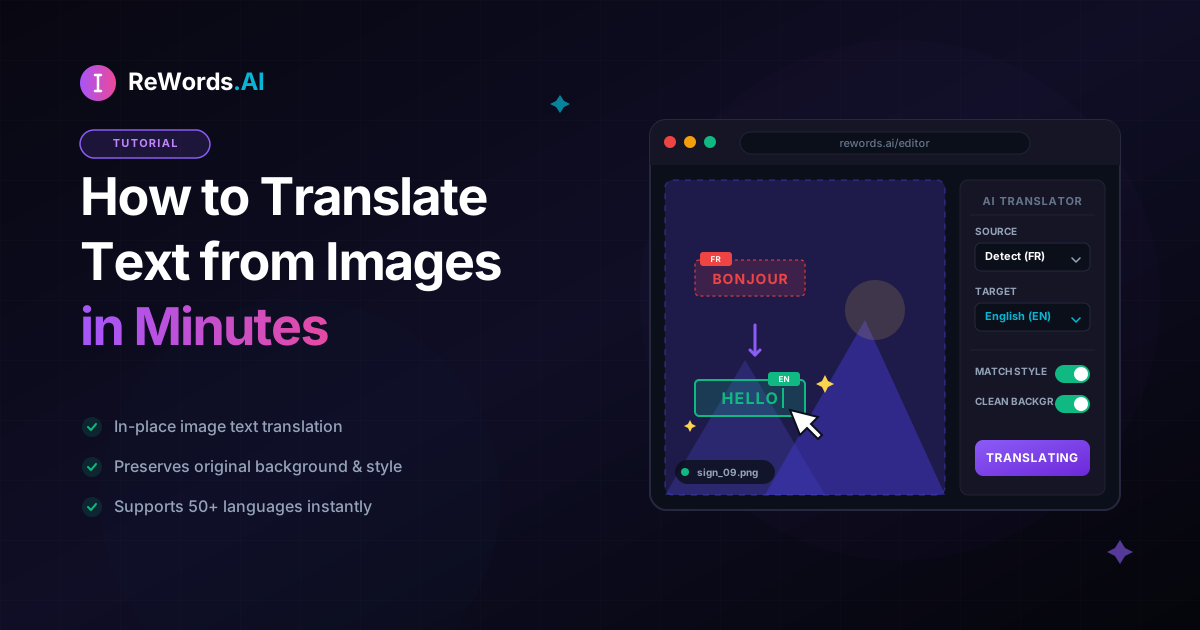
You can visually translate text inside any picture in seconds by uploading your file to ReWords.AI, clicking the foreign text, and typing your translation. Because the tool is entirely browser-based, there is no installation required, meaning you can start fixing your images immediately from any device.
Here is the exact workflow to achieve a flawless visual translation:
Step 1: Obtain Your Translation Before replacing the text in your image, you need to know what you want to say. If you do not speak the original language, use a quick translation app on your phone or browser to translate the foreign words into your target language. Keep this translated text copied to your clipboard.
Step 2: UPLOAD Your Image Navigate to ReWords.AI in your web browser. Drag and drop your image directly into the workspace. The platform supports a massive variety of visual formats and works flawlessly on photos, screenshots, scans, posters, certificates, invoices, memes, banners, thumbnails, and handwriting.
Step 3: Let the AI Scan and Detect All Text Once uploaded, the AI will automatically scan the entire image. Within moments, it detects every single word and character present in the picture, drawing interactive bounding boxes around all the editable text regions. You do not need to manually trace or lasso the text.
Step 4: CLICK a Text Region Hover over the image and click directly on the specific text region you want to translate. This tells the AI exactly which words you are targeting for replacement.
Step 5: TYPE Your Replacement A text input box will appear. Simply type (or paste) your translated text into this box.
Step 6: The AI Redraws the Image Perfectly Hit enter, and the magic happens. The AI automatically erases the original foreign text, seamlessly reconstructs the background pixels behind it, and redraws your new translated text. It matches the original font, size, color, and background perfectly. The result is an image that looks as though it was originally designed in your target language.
Pro Tip: Seamless Text Removal What if you realize you do not want to translate a specific line of text, but rather remove it entirely (such as a foreign watermark or an unnecessary subtitle)? Simply replace it with empty text. ReWords.AI will perform a seamless text removal, leaving behind a perfectly reconstructed background.
Pro Tip: Batch Edits If you are translating a text-heavy document like a scanned certificate, an invoice, or a detailed infographic, you can utilize batch edits. You can make multiple text changes on one single image, and it will only cost you 1 credit.
The Traditional Method: Translating Image Text Manually
Translating text manually requires you to carefully erase the original words, rebuild the background pixels by hand, and try to match the original typography using complex photo editing software. Using traditional software to edit text in image projects requires a steep learning curve and a significant time investment.
If you do not have access to AI tools, here is how you would traditionally have to translate text inside an image using a program like Photoshop:
Step 1: Import and Prep the Image Open your heavy desktop software, import the image, and duplicate the base layer so you do not permanently destroy the original file.
Step 2: Erase the Original Text Select the Clone Stamp tool, the Healing Brush, or Content-Aware Fill. You must carefully paint over every single foreign letter. If the text sits on a solid white background, this is easy. But if the text sits on a complex background—like a brick wall, a gradient sky, or a detailed photograph—you will have to manually rebuild those missing pixels so it doesn't look like a blurry smudge.
Step 3: Identify the Font You must now play a guessing game to figure out what font the original designer used. You might have to upload a crop of the image to a font-identification website, hope it finds a match, and then purchase or download that font to your computer.
Step 4: Type and Format the Translation Select the Type tool and enter your translated text. Now, you must manually adjust the font family, font weight, kerning, tracking, and exact color hex code to match the surrounding document.
Step 5: Apply Layer Styles If the original text had a drop shadow, a stroke, or a slight blur to match the compression of a JPEG, you must manually apply those filters to your new text layer to make it look authentic.
This manual process can easily take 15 to 30 minutes for a single sentence. It is highly inefficient for anyone who needs to translate images quickly.
Comparing Image Translation Methods
Choosing the right method to translate text inside an image depends entirely on your budget, graphic design experience, and how quickly you need the final file. Below is a detailed comparison of the different approaches you can take when localizing visual content.
| Feature | ReWords.AI | Traditional Software (e.g., Photoshop) | Basic OCR Tools | | :--- | :--- | :--- | :--- | | Time Required | Seconds | 15-30 minutes per image | Seconds (but only extracts text) | | Skill Level | Zero (Beginner-friendly) | High (Requires graphic design skills) | Zero (Beginner-friendly) | | Visual Quality | Perfect match (font, size, color, background) | Highly dependent on user skill | None (destroys original visual context) | | Installation | None (100% Browser-based) | Heavy desktop installation required | Varies (often requires app downloads) | | Cost & Effort | Low effort, batch edits cost 1 credit | High effort, expensive monthly subscriptions | Low cost, but extremely low utility |
As the table shows, if your goal is to maintain the visual integrity of the original image—whether it is a meme, a banner, or a screenshot—AI text replacement is the only logical choice for speed and quality.
Best Practices for Replacing Text in Images
To achieve a flawless visual translation, you must account for text expansion, maintain the original formatting, and ensure the new words fit naturally within the reconstructed background. Even with powerful AI doing the heavy lifting, keeping a few best practices in mind will ensure your final image is perfect.
Account for Text Expansion When you translate text from one language to another, the length of the words often changes dramatically. For example, translating a short English phrase into German or Spanish can result in a text string that is 30% to 50% longer. When you type your replacement text into the AI tool, be aware of the physical space available in the image. If the translated text is too long, consider using a more concise synonym so that the AI can seamlessly fit the new words into the original design space without overcrowding the background.
Consider the Context of the Image Always ensure your translation makes sense in the context of the visual. If you are translating a casual meme, use informal language. If you are translating a scanned invoice or a formal certificate, ensure your translation uses appropriate business or legal terminology. The AI will make the text look perfect, but it is up to you to ensure the words sound perfect.
Leverage Batch Editing for Consistency When translating a poster or an infographic with multiple text boxes, do not edit and download the image one phrase at a time. Upload the image once, let the AI detect all text regions, and methodically click and type your replacements for every section. Because ReWords.AI counts multiple changes on one image as a single credit through batch edits, this is the most efficient way to localize complex documents.
Frequently Asked Questions
Here are the direct answers to the most common questions users ask when trying to figure out how to translate text from images quickly and professionally.
how to translate text from a picture on my phone?
To translate text from a picture on your phone, you can open your mobile browser, navigate to a web-based AI editor like ReWords.AI, upload your photo, and type your translated text directly over the original words. Because the tool is entirely browser-based with no installation required, it works flawlessly on any mobile operating system, allowing you to edit photos directly from your camera roll.
can google translate replace text in an image?
Google Translate can overlay translated text on top of an image using your smartphone camera, but it does not permanently edit the underlying image file, match the exact original typography, or seamlessly reconstruct the background for professional use. Google Translate is great for quickly understanding a real-world sign, but for permanent, professional edits on digital files, a dedicated AI image text editor is required.
how to translate screenshots to english?
You can translate screenshots to English by uploading the screenshot file to an AI text replacement tool, clicking on the detected foreign text blocks, and typing the English translation so the tool can redraw the image in the original font. This workflow is perfect for localizing software tutorials, gaming screenshots, and social media posts where the original visual context must be preserved perfectly.
how do i translate text on a scanned document?
To translate text on a scanned document, upload the scan to an AI text editor, allow the system to detect the printed text or handwriting, select the regions you wish to change, and type your localized text. The AI will automatically match the color, size, and even the slight imperfections of the scanned background, making it ideal for translating invoices, certificates, and older archived files.
what is the best tool to translate image text?
The best tool to translate image text visually is one that operates entirely in your browser, automatically detects text regions, and redraws your typed translation while perfectly matching the original font, color, and background. Tools that offer batch editing and seamless text removal without requiring graphic design skills provide the highest value and fastest turnaround times.
Conclusion
Learning how to translate text from images no longer requires a degree in graphic design or hours of frustrating manual labor in Photoshop. By moving away from basic OCR extraction and embracing AI-driven visual replacement, you can localize any image file in seconds. Whether you need to update a marketing banner, localize a meme for a new audience, or translate a scanned invoice, the process is as simple as uploading a file, clicking a text box, and typing your new words.
Stop wrestling with complex software and let AI handle the typography and background reconstruction for you. Ready to transform your images instantly? Try ReWords.AI free today and experience seamless text replacement directly in your browser.