
Edit Text in Screenshot - Quick & Easy
Edit text in screenshots easily. Fix chat messages, update UI text, correct software screenshots. Perfect for documentation!
Workspace
Click to Upload or Drag & Drop
Supports JPG, PNG (Max 8MB)
Tips
The AI analyzes this text to "learn" the font style.
- You can add multiple text changes, spend 1 credit only total.
- Fix it below if origin text is wrong (e.g. 'He11o' → 'Hello')
- Do NOT change it if origin text is right
OCR can be wrong. Ensure this matches the text in the image exactly for best removal results.
See the case
Seamlessly edit any text on an image, seamlessly integrating it with the original.
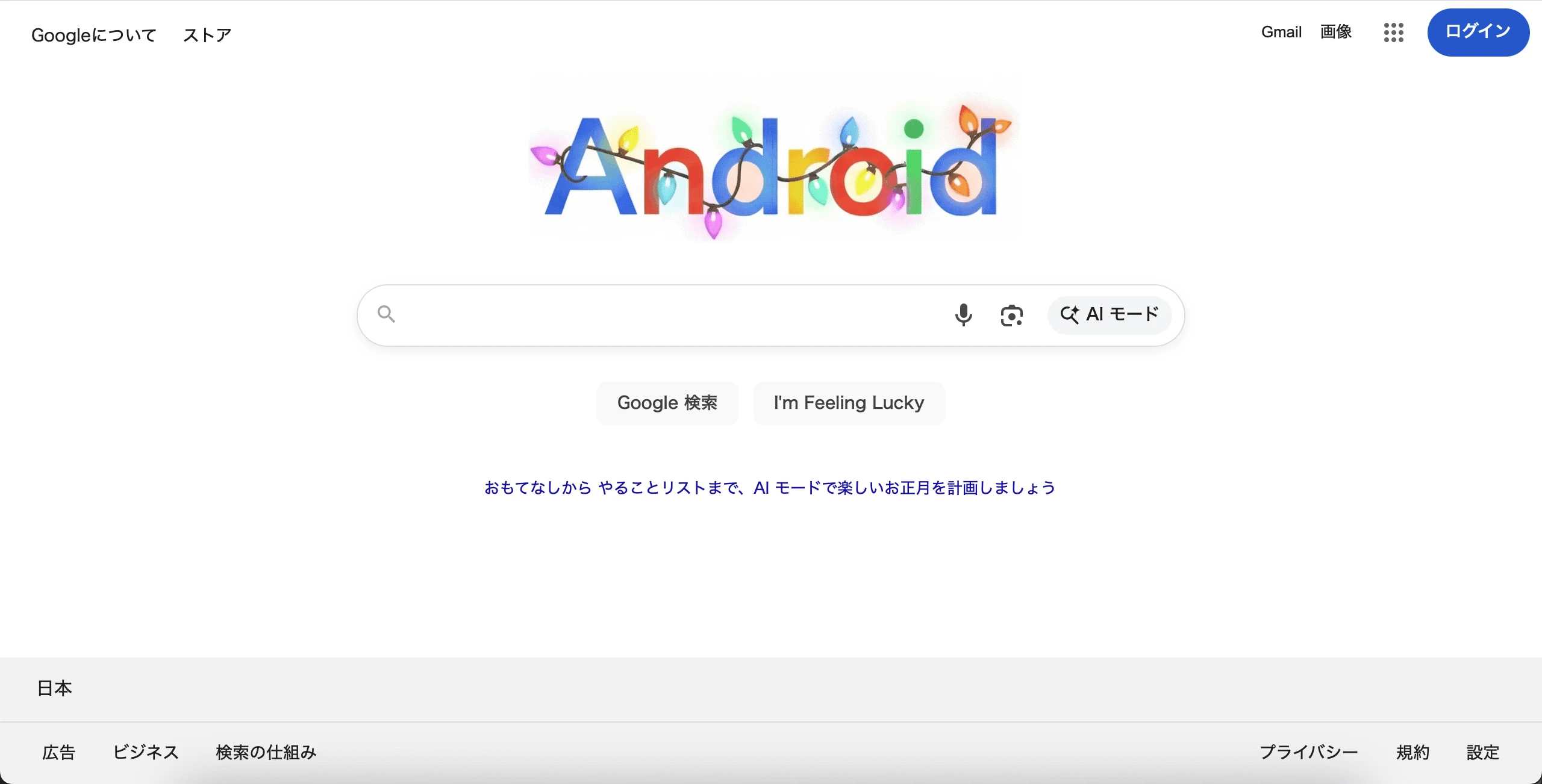
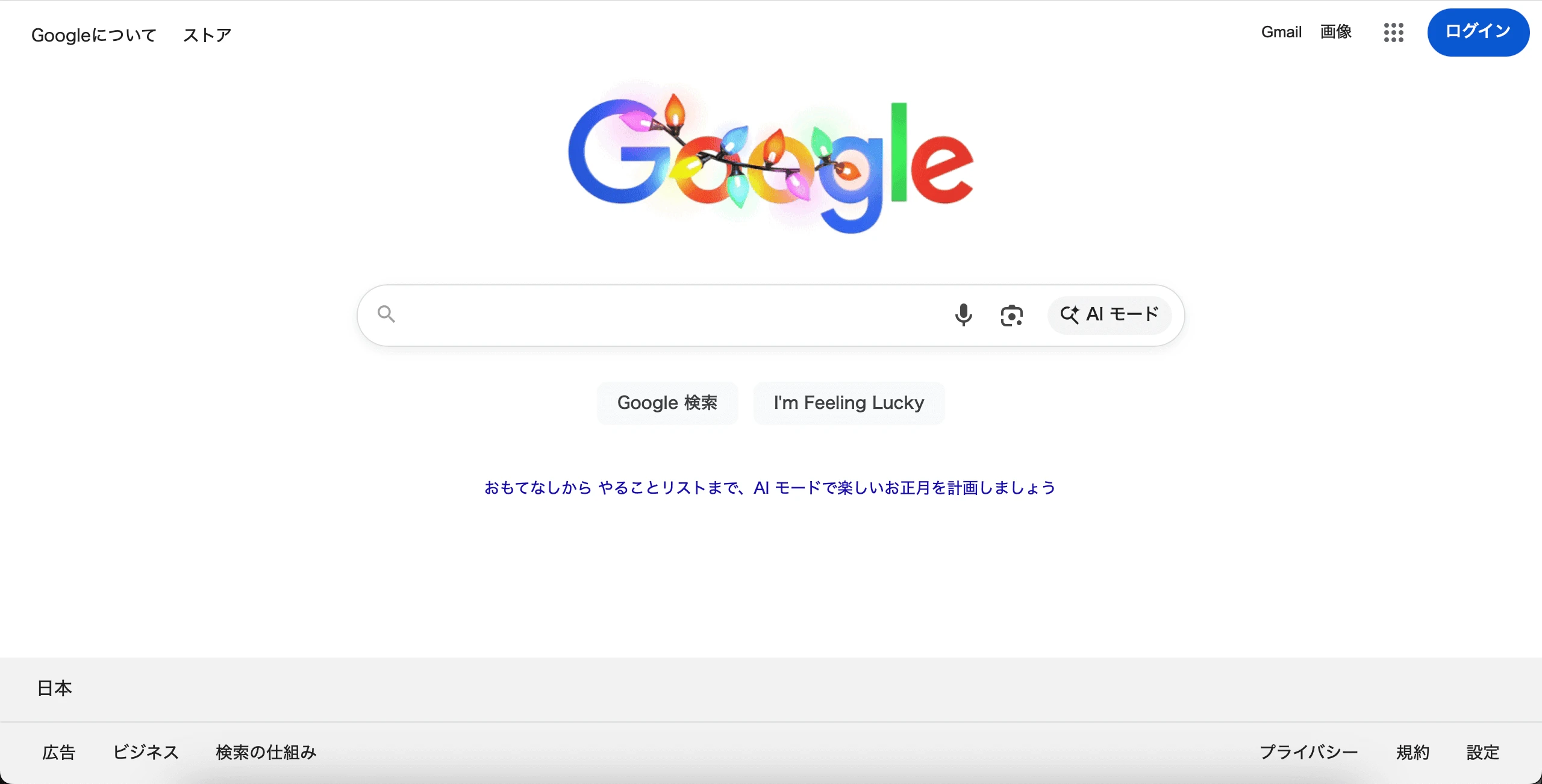
Workspace
Click to Upload or Drag & Drop
Supports JPG, PNG (Max 8MB)
Processing...
Edit Text in Screenshot Effortlessly
UI Element Recognition
The AI understands UI patterns when you edit text in screenshot images. It recognizes buttons, menus, dialog boxes, and form fields, preserving the interface design while updating text.
Pixel-Perfect Alignment
Screenshots often have crisp, pixel-aligned text. When you edit text in screenshot files, the AI maintains that sharpness and alignment, ensuring the edited version looks as clean as the original.
System Font Matching
Edit text in screenshot images with automatic system font detection. The AI recognizes common UI fonts like Segoe, San Francisco, and Roboto, matching them precisely.
Preserve Interface Elements
When you edit text in screenshot files, the AI leaves icons, borders, and UI chrome untouched. Only the text changes—everything else stays pixel-perfect.
How to Edit Text in Screenshot
Editing screenshots is common for documentation, tutorials, and presentations. Here's how to edit text in screenshot images quickly and cleanly.
Capture or Upload Screenshot
Take a screenshot using your device's native tools or upload an existing one. The editor accepts screenshots from Windows, Mac, Linux, iOS, and Android devices in PNG or JPG format.
Select the Text to Edit
Click and drag to highlight the text you want to change. When you edit text in screenshot images, be precise with your selection—include only the text, not surrounding UI elements.
Type the Replacement Text
Enter the new text in the input field. The AI will match the original font, size, and color automatically. You can edit text in screenshot files to correct errors, update versions, or localize content.
Generate and Export
Click Generate to edit text in screenshot with AI processing. The tool will update the text while preserving the rest of the interface. Download the edited screenshot for use in your documentation or presentation.
Why Edit Text in Screenshot Images
Screenshots are everywhere in modern communication. Here are practical reasons to edit text in screenshot files.
Software Documentation
Update tutorial screenshots when UI text changes. Edit text in screenshot images to reflect new menu labels, button names, or dialog messages without retaking every screenshot.
Localization and Translation
Translate software interfaces for international audiences. Edit text in screenshot files to show how the application looks in different languages without installing language packs.
Privacy and Redaction
Remove usernames, email addresses, or sensitive data from screenshots. Edit text in screenshot images to replace real information with placeholder text before sharing publicly.
Error Correction
Fix typos or outdated information in existing screenshots. Edit text in screenshot files instead of recreating the entire capture, saving time in documentation updates.
Version Updates
When software version numbers change, edit text in screenshot images to reflect the current version without retaking all your documentation screenshots.
Demo and Presentation Prep
Customize screenshots for specific audiences. Edit text in screenshot files to show relevant data, appropriate usernames, or localized content for different presentations.