
Edit Text in Image Online Free
Edit text in images online free with AI. Replace text in photos instantly while matching fonts perfectly. No Photoshop needed. Try now!
Workspace
Click to Upload or Drag & Drop
Supports JPG, PNG (Max 8MB)
Tips
The AI analyzes this text to "learn" the font style.
- You can add multiple text changes, spend 1 credit only total.
- Fix it below if origin text is wrong (e.g. 'He11o' → 'Hello')
- Do NOT change it if origin text is right
OCR can be wrong. Ensure this matches the text in the image exactly for best removal results.
See the case
Seamlessly edit any text on an image, seamlessly integrating it with the original.
Workspace
Click to Upload or Drag & Drop
Supports JPG, PNG (Max 8MB)
Processing...
How to edit text in an image
Upload the image, drag a box around the text you want to change, type the new words, and click Generate. ReWords.AI rewrites only that area and matches the original font, color and background, so the rest of the picture is left untouched. No Photoshop, layers or font files are needed.
At a glance
| Supported files | PNG, JPG and JPEG, up to 8 MB |
|---|---|
| What it changes | Only the text you select; the rest of the image stays as it was |
| Cost | 1 credit per image, with as many text boxes as you need |
| Free to try | New accounts get 1 free credit (the free result carries a watermark) |
| Pricing | Pay as you go from $5.99 for 10 credits, or subscribe from $5.99/month |
| Watermark | Any purchase unlocks watermark-free downloads |
| Privacy | Images are deleted automatically within 72 hours |
Works best for
- Changing a word, name, date, price or number on a photo, poster, sign or menu
- Fixing a typo in a screenshot, banner or social media image
- Rewriting handwritten notes or chalkboard text in the same handwriting style
- Cleaning up garbled text in AI-generated images
Know the limits
- Very small or heavily blurred text may need a retry, or a larger selection around the text
- A much longer replacement than the original text may not fit the space naturally
- It edits images, not PDFs or multi-page documents — export a page as PNG or JPG first
- It is not for forging identity documents, receipts or official records (see our Terms)
Real Results: Before and After
Every example below was edited with ReWords.AI and is shown exactly as the tool returned it.
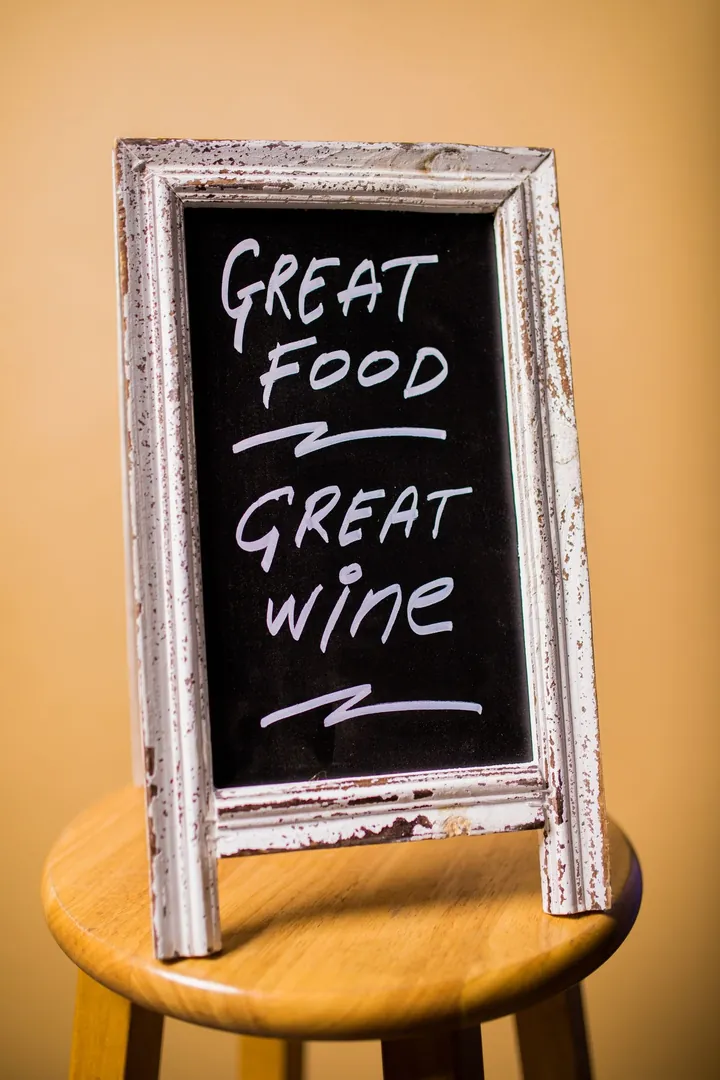 Before
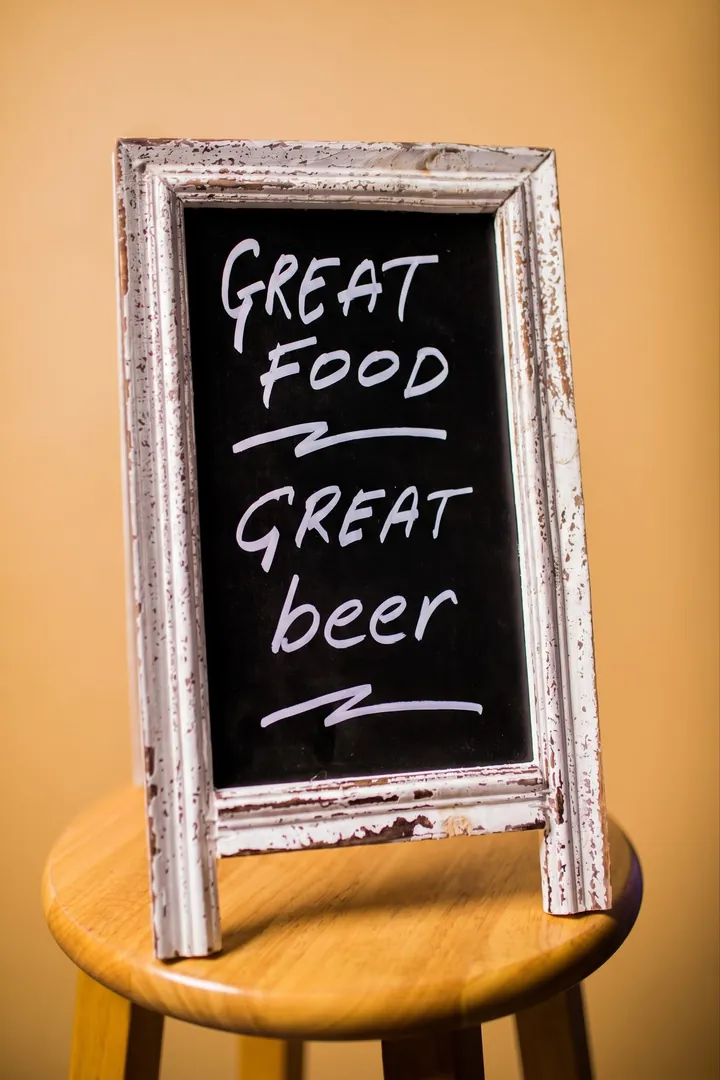 After
AfterChalkboard sign: “wine” → “beer”
Same chalk strokes and board texture.
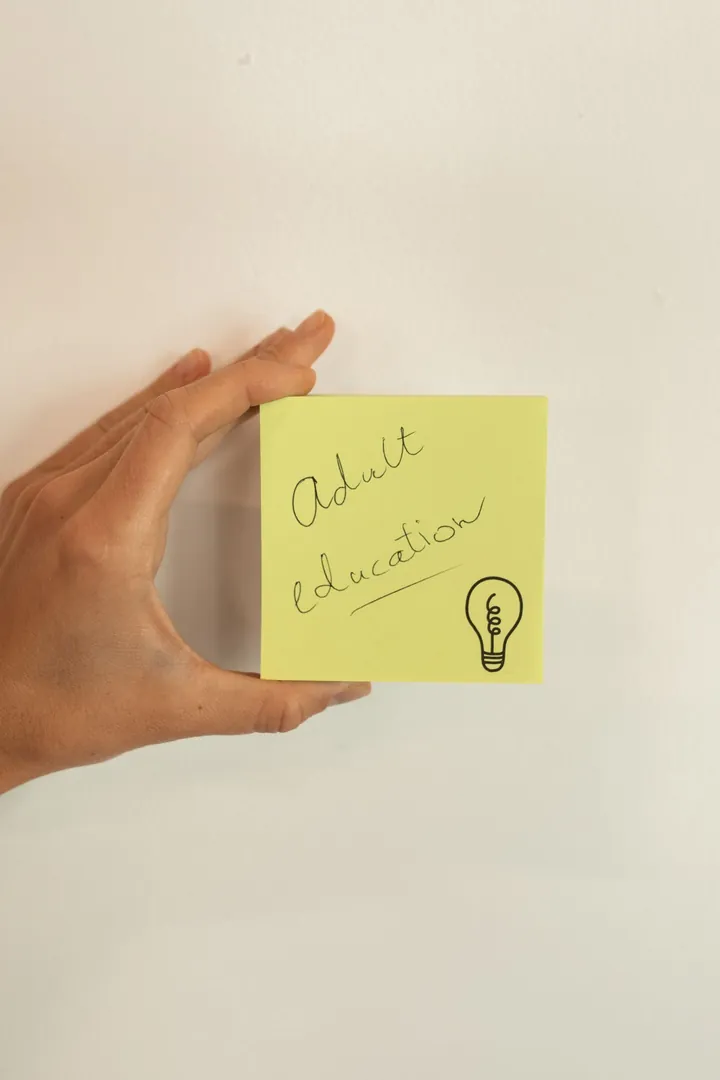 Before
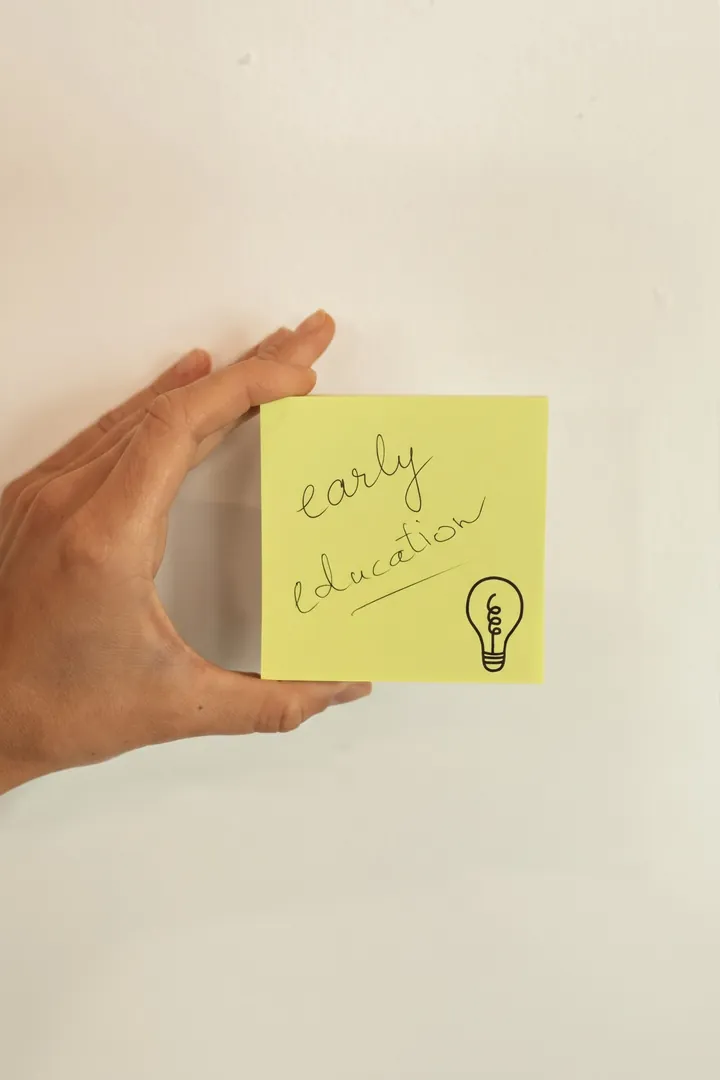 After
AfterHandwritten sticky note: “Adult” → “early”
Matches the original handwriting and pen.
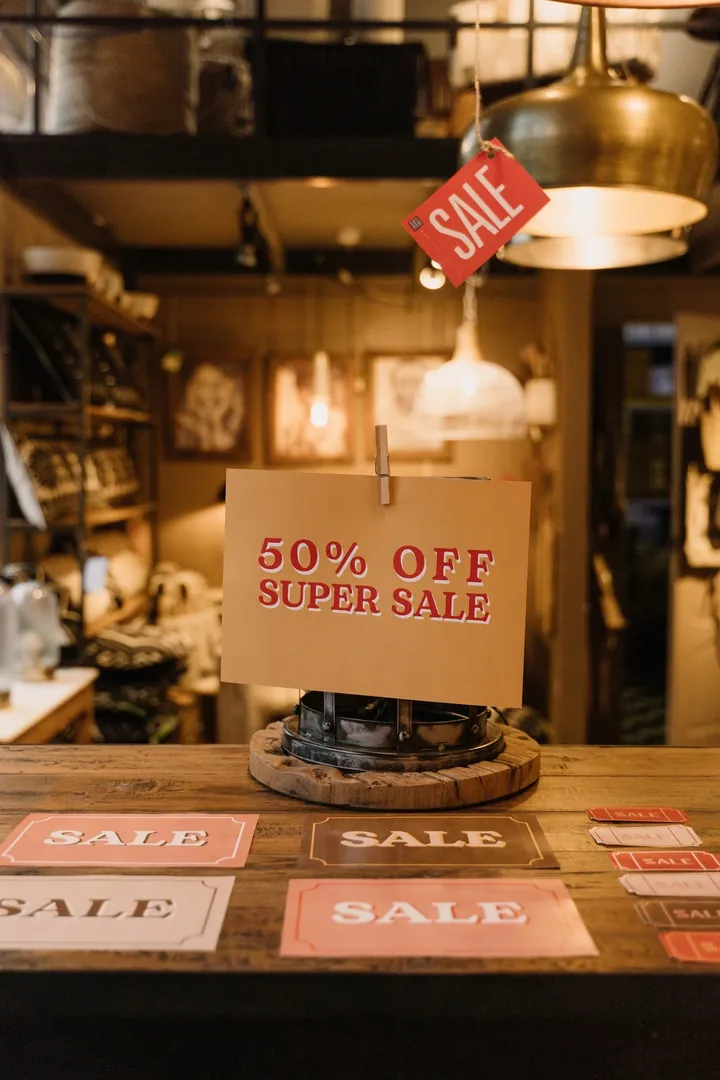 Before
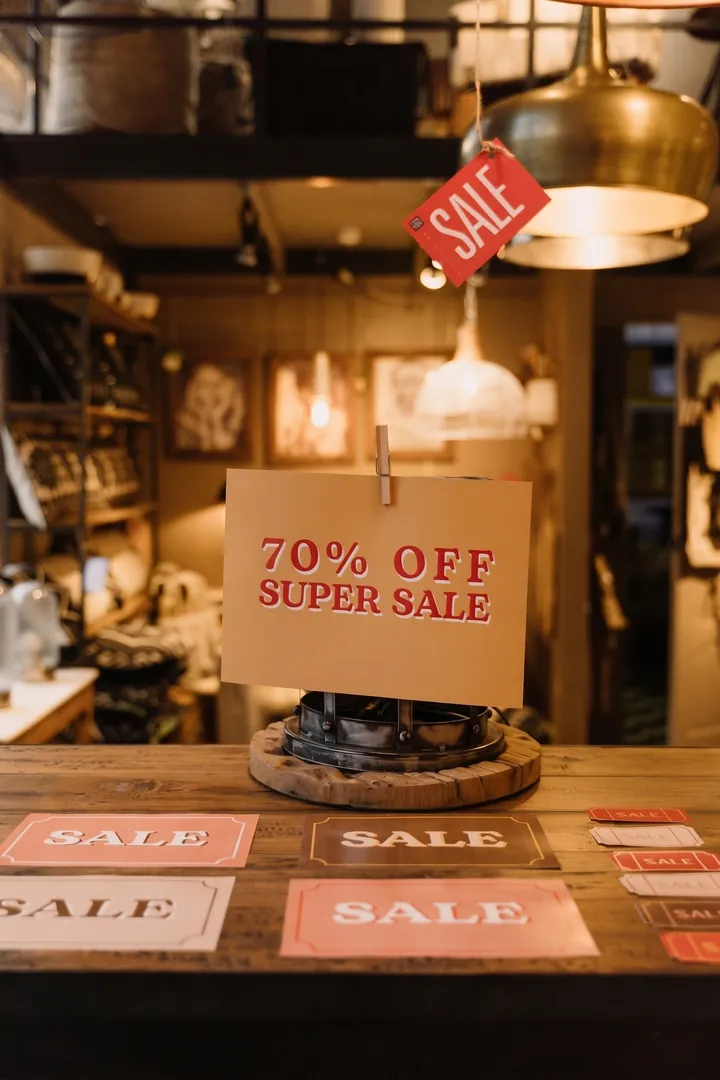 After
AfterPrinted sale sign: “50% OFF” → “70% OFF”
Keeps the serif font, drop shadow and lighting.
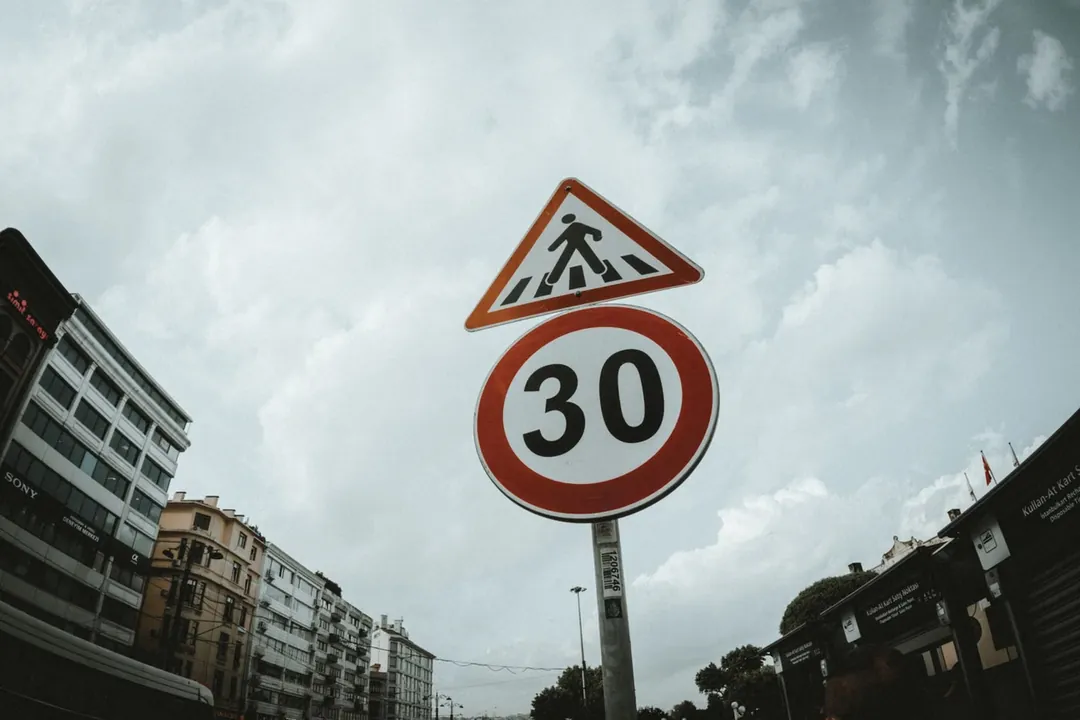 Before
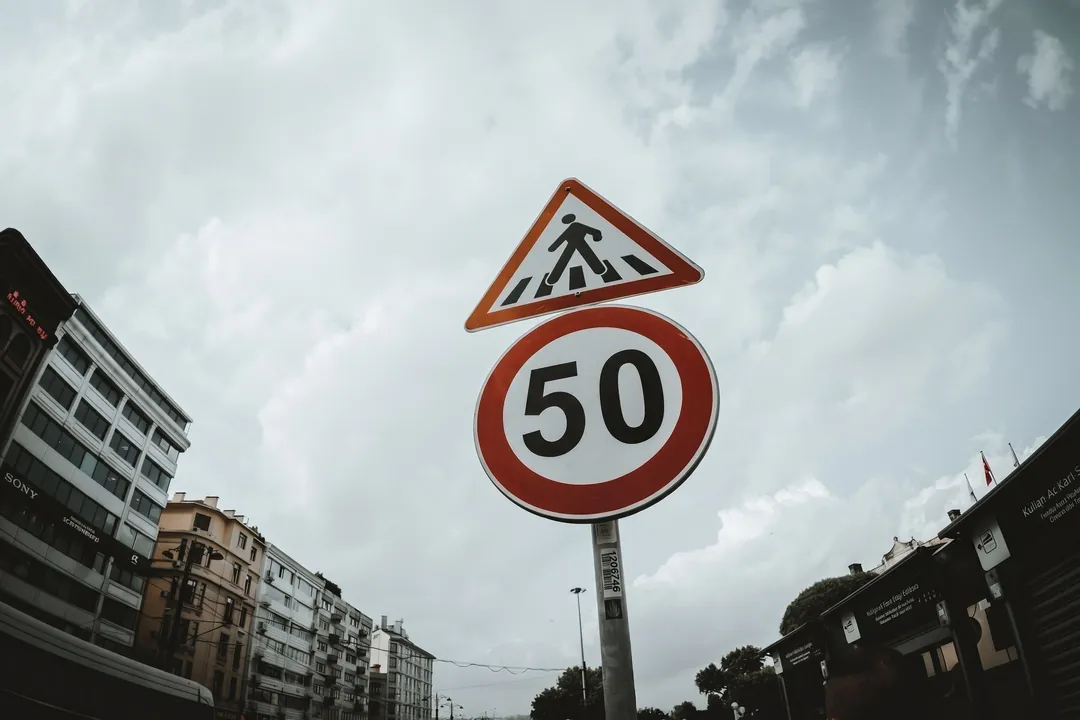 After
AfterStreet sign number: “30” → “50”
Numbers follow the sign’s curve and paint.
Source photos from Pexels.
Why Edit Text in Images with ReWords.AI
Save Hours of Editing Time
What once took 30 minutes in Photoshop now takes seconds. Upload, select, type, and download—no layers, no masks, no complex tools.
No Design Skills Required
You don't need to know typography or color theory. The AI handles font matching and background blending automatically.
Works on Any Device
Edit text in image files from your laptop, tablet, or phone. The browser-based editor requires no downloads or installations.
Professional-Quality Results
AI-generated edits preserve shadows, textures, and lighting so your changes look native to the original image.
How to Edit Text in Image
Follow these four simple steps to edit text in any image. The entire process takes under a minute for most images.
Upload Your Image
Drag and drop any PNG, JPG, or WebP file into the editor. ReWords.AI accepts photos, screenshots, scanned documents, social media graphics, and AI-generated images.
Select the Text Area
Click and drag to draw a selection box around the text you want to change. The selection helps the AI understand exactly which part of your image needs editing.
Enter Your New Text
Type the replacement text in the input field. You can include style notes if you want the AI to adjust the look—for example, "make it bold" or "use a handwritten style."
Generate and Download
Click Generate to let the AI rebuild the image with your new text. Once you're happy with the result, download the finished image in full resolution.
When to Edit Text in Image Files
People use ReWords.AI for a wide range of personal and professional tasks. Here are some of the most common use cases.
Marketing and Social Media
Update promotional graphics with new dates, prices, or campaign slogans without recreating the entire design. Edit text in image posts to localize content for different markets.
Documents and Screenshots
Correct typos in scanned documents, update outdated information on screenshots, or redact sensitive details before sharing. Edit text in image files quickly without re-scanning.
Memes and Creative Projects
Customize meme templates with your own captions, edit text in image art for personal projects, or create variations of viral content.
E-commerce and Product Photos
Change product labels, update pricing on promotional banners, or translate packaging text for international listings without a new photoshoot.
Certificates and Awards
Personalize certificate templates with recipient names, update dates on awards, or correct spelling errors on official-looking documents.
AI-Generated Images
Fix garbled or misspelled text in AI art. Many AI image generators struggle with text—use ReWords.AI to correct those imperfections.