
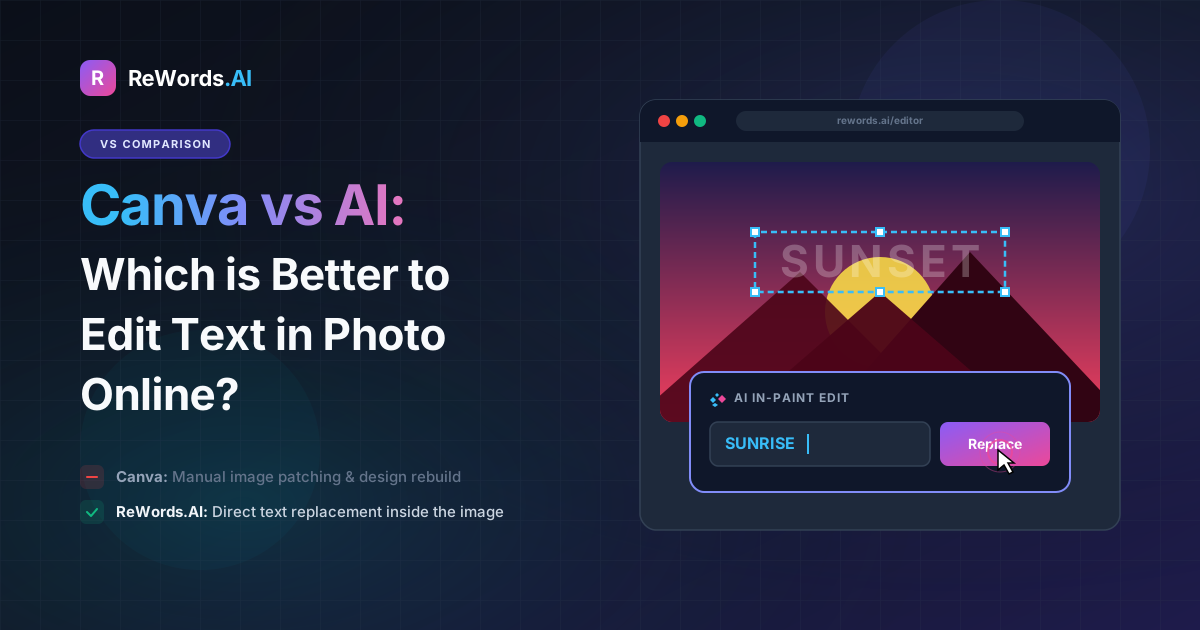
Canva vs AI: Which is Better to Edit Text in Photo Online?
To edit text in a photo online, you can either use a traditional design platform like Canva to manually cover the old words and insert new text boxes, or you can use a dedicated AI tool that automatically replaces the text while perfectly matching the original font and background.
If you are reading this, you are likely in the middle of a project, staring at a typo on a flattened JPEG or PNG image, and you need it fixed immediately. When text is baked into the pixels of an image, you cannot simply click and hit the backspace key like you would in a Word document. Historically, fixing this required opening heavy graphic design software, carefully cloning the background to erase the mistake, and then scrolling through hundreds of fonts to find a match. Today, browser-based tools have made this process much more accessible.
ReWords.AI is a browser-based AI tool that lets you edit or remove text in any image by clicking the text and typing a replacement — the AI matches the original font, color, and background automatically.
In this comprehensive guide, we will compare the traditional manual method of editing image text online with the modern AI approach, helping you choose the best workflow for your specific needs.
Key Takeaways
- Traditional online editors require you to manually cover old text with shapes, rebuild the background, and guess the original font.
- AI-powered tools scan your image, detect the text automatically, and recreate the exact typography and background in a matter of seconds.
- Both methods work directly in your web browser without requiring you to install heavy desktop software.
- You can seamlessly remove text entirely using AI by replacing the words with empty text, which forces the AI to reconstruct the background.
- AI tools are capable of processing complex files like photos, screenshots, scans, posters, certificates, invoices, memes, banners, thumbnails, and even handwriting.
How to Edit Text in Photo Online Using Traditional Tools
You can edit text in a photo online using traditional design tools like Canva by uploading your image, using shape tools to manually cover the existing text, and typing your new words over the covered area.
If you do not have access to an AI text editor, traditional browser-based design tools are your next best option. Platforms like Canva or Photopea allow you to manipulate layers, which is essential when trying to hide baked-in text. However, because these tools do not natively understand that the pixels represent text, the process is entirely manual.
Here are the honest, working steps to replace text in an image using a traditional online editor like Canva:
- Upload your image: Open your browser, navigate to your design tool, and upload the photo, screenshot, or graphic you need to edit.
- Sample the background color: Use the color picker tool to select the exact shade of the background immediately surrounding the text you want to remove.
- Cover the old text: Insert a basic shape (like a square or rectangle). Change the color of this shape to the background color you just sampled. Resize and drag this shape so it perfectly covers the old text. (Note: If the background is a gradient, texture, or photograph, a solid shape will look obvious and fake. In these cases, you would need to use advanced cloning tools or a paid magic eraser feature).
- Add a new text box: Click the text tool and add a new text box over your newly created blank space. Type your new words.
- Guess the font: Open the font menu and scroll through the available options. You will need to rely on your own graphic design knowledge to identify whether the original font was a serif, sans-serif, or script, and try to find the closest match.
- Adjust typography settings: Manually tweak the font size, text color, letter spacing (kerning), and line height to make the new text blend in with the rest of the image.
- Export the file: Once you are satisfied with the manual patch job, download the flattened image back to your computer.
While this method works well for simple graphics with flat, solid-color backgrounds (like a basic infographic), it quickly becomes frustrating and time-consuming when dealing with complex photos, shadows, or unique typography.
How to Edit Text in Photo Online Using AI
You can edit text in a photo online using AI by uploading your image to ReWords.AI, clicking the automatically detected text region, and typing your new words to have the AI instantly redraw it.
The AI approach eliminates the manual labor of cloning backgrounds and hunting for fonts. Because machine learning models have been trained to recognize typography and image context, the software understands exactly what you are trying to achieve. There is no need to create layers, draw shapes, or use color pickers.
Here is the exact workflow when using ReWords.AI:
- UPLOAD image: Drag and drop your file directly into the browser-based tool. There is no installation required.
- AI scans and detects all text: The system takes a few seconds to analyze the image, automatically placing interactive bounding boxes around every word and sentence it finds.
- CLICK a text region: Simply click on the specific word or phrase you want to alter.
- TYPE replacement: A text box will appear. Type your new desired text.
- AI redraws it: The AI instantly generates the new text, matching the original font, size, color, and background perfectly.
This workflow is vastly superior when you need to change text in photo files that have complex visual elements. Furthermore, ReWords.AI offers batch edits. If you have a document or a poster where five different lines of text need updating, you can make multiple changes on one image, and it only consumes 1 credit.
If your goal is not to replace the text but to delete it entirely, the AI handles this flawlessly. By simply replacing the selected region with empty text, the AI performs a seamless text removal, intelligently reconstructing the background behind where the words used to be.
Comparing Quality: Font Matching and Background Reconstruction
AI tools provide superior visual quality by automatically identifying and replicating the exact font and background, whereas traditional tools rely entirely on your manual ability to guess fonts and paint over backgrounds.
When evaluating which method is better, the two biggest hurdles in image text editing are typography matching and background reconstruction.
The Font Matching Problem In a traditional editor, if you are trying to update a date on a promotional banner, you must figure out exactly what font the original designer used. Is it Helvetica? Arial? Roboto? If you choose the wrong one, the edited text will look completely out of place, instantly revealing that the image has been tampered with. Even if you guess the font correctly, you still have to manually match the exact hex code of the text color, the weight (boldness), and the alignment. AI bypasses this entirely. By analyzing the pixel data, the AI redraws the new characters using the exact same typographic properties as the surrounding text.
The Background Reconstruction Problem Covering up old text is easy if the background is a solid, flat white. But what if the text is overlaid on a photograph of a brick wall? What if it sits on top of a smooth color gradient, or a textured paper background on a scanned certificate? In traditional tools, placing a solid-colored box over the text ruins the image. You would need to spend hours using a clone stamp tool to carefully recreate the brick wall or the paper texture pixel by pixel.
Because AI understands the context of the image, it excels at background reconstruction. When you use an AI tool to edit text in image files, the neural network looks at the surrounding pixels—the bricks, the shadows, the gradients—and mathematically predicts what should be behind the text. It paints in a perfect continuation of the background before laying the new, perfectly matched text on top.
Time and Workflow Efficiency for Image Text Editing
AI editing takes seconds and requires absolutely no design skills, making it vastly more efficient than traditional editing, which can take anywhere from several minutes to over an hour depending on the complexity of the image.
When you are mid-task, time is your most valuable resource. If you are a marketer who just noticed a typo on a social media thumbnail right before publishing, you do not have time to open a complex editor and rebuild the graphic. You need a solution that works in under a minute.
Below is a direct comparison of the two methods based on key workflow metrics:
| Feature | Traditional Online Editors (e.g., Canva) | AI Editors (e.g., ReWords.AI) | | :--- | :--- | :--- | | Time Required | 5 to 15+ minutes per image | Under 1 minute per image | | Skill Level | Intermediate (requires basic design knowledge) | Beginner (zero design skills needed) | | Font Matching | Manual (guesswork and scrolling) | Automatic (perfect replication) | | Backgrounds | Manual (fails on complex textures) | Automatic (seamless reconstruction) | | Software Install | Browser-based (No install) | Browser-based (No install) | | Batch Editing | Manual repetition for each word | Multiple changes on one image = 1 credit |
The efficiency of the AI workflow is particularly evident during batch edits. In a traditional editor, changing five different names on a scanned document means repeating the color-picking, shape-drawing, and font-matching process five separate times. With ReWords.AI, the initial scan detects all the text at once. You simply click, type, click, type, and the AI handles the heavy lifting simultaneously.
Which Method is Best for Different Image Types?
Traditional tools work fine for simple digital graphics with flat, solid backgrounds, but AI is absolutely necessary for complex, real-world images like photos, scans, and textured documents.
The type of image you are working with should dictate the tool you choose. If you are editing a basic pie chart with a white background, a traditional editor will get the job done. However, for almost everything else, AI is the better choice.
ReWords.AI is specifically engineered to handle a massive variety of image formats and use cases. Here is how it performs across different media:
- Photos and Screenshots: Whether it is a street sign in a photograph or a typo in a software screenshot, the AI perfectly matches the natural lighting, shadows, and resolution of the original file.
- Scans, Certificates, and Invoices: Scanned documents often have paper textures, slight wrinkles, or uneven lighting. AI reconstructs these subtle imperfections so the edited text does not look like a sterile digital overlay.
- Posters and Banners: Event marketing materials often use highly stylized fonts. The AI can mimic these styles instantly, allowing you to change dates, times, or locations without needing the original source file.
- Memes and Thumbnails: If you need to translate a meme into another language or update a YouTube thumbnail, AI allows you to swap out the text while preserving the background images and bold typography.
- Handwriting: Remarkably, advanced AI can even process handwritten text, allowing you to alter notes while maintaining the organic, penned style of the original writer.
Frequently Asked Questions
Here are the answers to the most common questions users ask when trying to modify text inside their images.
How can I edit text in a picture online for free?
You can edit text in a picture online by using browser-based design tools like Canva to manually cover the text with shapes and add new text boxes, or by using free trials of AI tools that automate the font matching and background reconstruction process directly in your browser.
Is there an AI that can change text in an image?
Yes, ReWords.AI is a dedicated AI tool that automatically scans your image, detects the text, and allows you to type a replacement. The AI then redraws the new text while perfectly matching the original font, color, size, and background.
How to remove text from an image without ruining the background?
To remove text without ruining the background, you should use an AI text editor. By selecting the text and replacing it with empty text, the AI will perform a seamless text removal by intelligently reconstructing the background textures, gradients, and shadows behind the words.
Can I edit handwritten text in a photo online?
Yes, modern AI tools like ReWords.AI are capable of detecting and editing handwritten text in photos. The AI analyzes the stroke weight, color, and style of the handwriting, allowing you to type new words that are generated to mimic the original handwritten appearance.
Conclusion
When deciding how to edit text in a photo online, the choice between traditional design editors and modern AI tools comes down to speed, quality, and ease of use. While traditional tools like Canva are highly capable for general graphic design, using them to fix baked-in text is a tedious, manual process that requires you to guess fonts and painstakingly rebuild backgrounds.
AI has completely revolutionized this workflow. By automating font matching, typography alignment, and background reconstruction, AI turns a frustrating 15-minute chore into a simple 3-step process that takes seconds. Whether you are updating an invoice, translating a meme, fixing a poster, or altering a screenshot, the AI approach guarantees a flawless, professional result without requiring any graphic design experience.
Stop wasting time hunting for fonts and cloning backgrounds. Try ReWords.AI free today at https://rewords.ai and experience the fastest way to edit text in any image.