
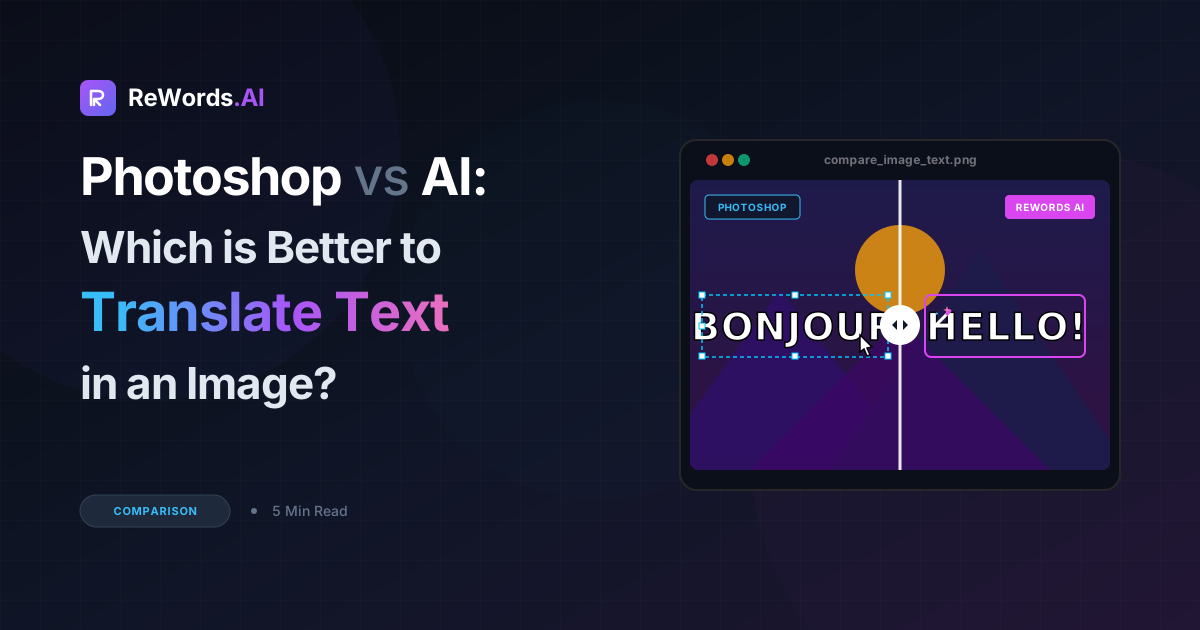
Photoshop vs AI: Which is Better to Translate Text in an Image
Photoshop vs AI: Which is Better to Translate Text in an Image
To translate text in an image, you can either manually erase the original text and retype the translation using a photo editor like Photoshop, or use an AI tool that automatically replaces the text while matching the original font and background.
If you are currently staring at a foreign-language poster, a screenshot of an app, or an imported product manual, you already know how frustrating image translation can be. In the past, localizing visual content meant relying entirely on professional graphic designers. You had to manually extract the foreign words, run them through a translation service, carefully paint over the original text to reconstruct the background, and then spend hours hunting for a font that matched the original typography. Today, artificial intelligence has completely transformed this workflow.
ReWords.AI is a browser-based AI tool that lets you edit or remove text in any image by clicking the text and typing a replacement — the AI matches the original font, color, and background automatically.
Whether you are a marketer localizing social media banners, a student trying to read a scanned document, or a creator translating memes for a new audience, choosing the right method is critical. In this guide, we will provide an honest comparison between traditional manual editing in Photoshop and modern AI workflows, helping you decide which approach is best for your specific project.
Key Takeaways
- Traditional Editing: Using software like Photoshop requires high technical skill to manually clone backgrounds and match fonts, but offers pixel-perfect control for complex, multi-layered graphic design files.
- AI Editing: AI tools eliminate the manual labor by automatically detecting text, reconstructing the background, and matching the typography in a matter of seconds.
- Cost and Speed: AI workflows drastically reduce the time spent on image translation from hours to seconds, making it the most cost-effective solution for flat images like JPEGs and PNGs.
- Seamless Removal: Modern AI allows you to replace text with empty space, seamlessly removing the original words while perfectly rebuilding the background behind them.
Method 1: Using Photoshop to Translate Text in an Image
Using Photoshop to translate text in an image requires manually removing the original words using background generation tools and typing your new translated text over the reconstructed canvas.
If you already have an Adobe Creative Cloud subscription and possess intermediate graphic design skills, Photoshop is a powerful way to handle image translation. Because Photoshop cannot automatically translate text embedded in a flat image (like a JPEG or PNG), you will need to use a two-window workflow: one for your translation tool (like Google Translate or DeepL) and one for Photoshop.
Here are the genuine, working steps to translate text in an image using Photoshop:
Step 1: Extract and Translate the Text Since Photoshop does not have a built-in optical character recognition (OCR) translator for flat images, you must first get the translation. Open your image on your computer, type the foreign text into a translation app, and copy the translated result to your clipboard.
Step 2: Remove the Original Text Open your image in Photoshop. Duplicate your background layer (Ctrl/Cmd + J) to ensure you are working non-destructively. Select the Lasso Tool (L) and carefully draw a selection around the text you want to remove.
Step 3: Reconstruct the Background With the text selected, go to Edit > Content-Aware Fill. Photoshop will analyze the surrounding pixels and attempt to fill in the space where the text used to be. If the background is complex (like a gradient, a textured wall, or a busy photograph), Content-Aware Fill might leave artifacts or blurry spots. You will need to use the Clone Stamp Tool (S) or the Spot Healing Brush (J) to manually paint over these imperfections until the background looks natural.
Step 4: Add the Translated Text Select the Type Tool (T) and click on the newly cleared space. Paste the translated text from your clipboard.
Step 5: Match the Font and Styling This is often the most time-consuming step. You must now make your new text look like it belongs in the original image. Go to Type > Match Font to have Photoshop suggest similar fonts installed on your system. Once you select a font, you will need to manually adjust the font size, tracking, leading, color, and layer styles (like drop shadows or strokes) to perfectly mimic the original design.
While this method gives you absolute control over every single pixel, it is incredibly tedious. If you have an image with ten different text elements, you have to repeat this entire five-step process ten times.
Method 2: Using AI to Translate Text in an Image
Using AI to translate text in an image takes just a few clicks because the software automatically detects the text regions, accepts your typed translation, and instantly redraws the background and font to match the original.
For users who need to get the job done quickly without installing heavy software or paying for expensive design subscriptions, AI is the superior choice. Tools designed specifically for text manipulation in images remove the friction of the manual editing process. Because it is a browser-based AI tool, there is no installation required, allowing you to work from any device.
Here is the exact workflow for using ReWords.AI to translate your images:
Step 1: UPLOAD Your Image Navigate to the ReWords.AI website in your browser and upload your flat image file. The system supports a massive variety of formats and use cases.
Step 2: AI Scans and Detects All Text The moment your image is uploaded, the AI automatically scans the entire file. It detects every single word, regardless of the language, angle, or background complexity, and places clickable bounding boxes around the text regions.
Step 3: CLICK a Text Region Simply click on the specific bounding box containing the foreign text you want to translate.
Step 4: TYPE Your Replacement A text box will appear. Type or paste your translated text into this box. If you realize you don't actually need to translate the text, but rather want to get rid of it entirely, you can simply replace it with empty text. This triggers a seamless text removal, where the AI perfectly reconstructs the background behind the words as if they were never there.
Step 5: AI Redraws the Image Once you hit enter, the AI takes over. It completely redraws the selected region, matching the original font, size, color, and background perfectly. You do not need to hunt for typography or use a clone stamp tool; the AI handles the aesthetic integration instantly.
One of the most significant advantages of this AI workflow is how it handles volume. With ReWords.AI, batch edits are highly efficient: making multiple text changes on one single image only costs 1 credit. This means you can translate an entire poster with a dozen different text blocks without burning through your quota.
The Core Challenges of Image Translation
When deciding how to translate text in an image, it is important to understand why this task is historically so difficult. Translating visual content is not a simple 1-to-1 word swap. It involves a concept known in the localization industry as "desktop publishing" (DTP) or visual localization.
The Text Expansion Problem Languages take up different amounts of physical space. For example, translating a sentence from English to Spanish or German often results in text that is 20% to 30% longer. Conversely, translating English into Chinese or Japanese might result in text that is much shorter but requires a completely different font architecture. When you edit text in an image using Photoshop, text expansion means you have to manually resize the font, adjust the kerning, or completely redesign the layout so the new words fit within the original design constraints. AI tools intuitively understand the spatial boundaries of the original text box and automatically scale the new text to fit naturally within the reconstructed background.
The Typography Challenge Identifying a font in a flattened JPEG is notoriously difficult. Even with font-matching algorithms, finding the exact typeface used by the original designer is rare. You often have to settle for a "close enough" font, which can make the translated image look amateurish or forged. AI bypasses this by generating the letters visually rather than relying on a traditional font file. It looks at the style, weight, color, and texture of the original words and generates the translated characters to match that exact visual DNA.
Background Complexity Text is rarely placed on a solid white background. It is often overlaid on photographs, gradients, textures, or complex patterns. Manually erasing text from a busy background requires meticulous clone stamping. If you miss a spot, the image looks digitally manipulated. AI models are trained on millions of images, allowing them to understand context and seamlessly rebuild complex backgrounds—even predicting what a partially obscured object behind the text should look like.
Comparing Methods to Translate Text in an Image
When deciding how to translate text in an image, AI tools offer much faster results and ease of use, while Photoshop provides pixel-level manual control for complex, professional graphic design projects.
To help you make an informed decision based on your current task, here is a breakdown of how manual editing compares to AI editing across four critical metrics:
| Feature | Photoshop (Manual Editing) | ReWords.AI (AI Editing) | | :--- | :--- | :--- | | Time Required | 5 to 15 minutes per text block | Under a minute for the whole image | | Cost | Expensive monthly subscription | Cost-effective credit system | | Skill Level | High (Requires graphic design knowledge) | Zero (Browser-based, point-and-click) | | Quality of Output | Depends entirely on user's skill | Consistently high, automatic matching |
If you are a professional retoucher working on a multi-layered PSD file where the text is already separated into its own editable layer, Photoshop is the right tool. However, if you are dealing with flattened images where the text is baked into the pixels, the AI approach is objectively faster and requires significantly less effort.
Best Use Cases for Manual vs AI Translation
Manual translation works best for highly complex, multi-layered source files, whereas AI is ideal for quickly localizing flat images across a wide variety of everyday formats.
Understanding what types of images you are working with will dictate your workflow. Photoshop is the industry standard for creating original compositions. If you have the original source files from the design team, you should use traditional software.
However, in the real world, we rarely have access to the original source files. We usually only have the final, flattened image. This is where ReWords.AI excels. Because of its advanced text detection and background reconstruction capabilities, it works flawlessly on a massive variety of visual media.
You can use AI to instantly translate:
- Photos and Screenshots: Localize app interfaces, software tutorials, or street signs captured on your camera.
- Scans, Certificates, and Invoices: Translate imported business documents, foreign academic records, or overseas supplier invoices without altering the official formatting.
- Posters and Banners: Quickly adapt marketing materials, event flyers, and digital ads for different geographic regions.
- Memes and Thumbnails: Creators can translate viral content and YouTube thumbnails to reach international audiences instantly.
- Handwriting: Remarkably, the AI can even detect and replace handwritten text, matching the color and flow of the original penmanship.
Frequently Asked Questions
How can I translate text from a picture on my phone?
You can translate text from a picture on your phone by opening your mobile browser, navigating to ReWords.AI, and uploading the photo directly from your camera roll. Because it is a browser-based tool with no installation required, the workflow is exactly the same on mobile as it is on desktop: the AI scans the image, you tap the text region you want to change, and you type the translated text. The AI will instantly redraw the image matching the original font and background.
Is there a way to translate text in an image without losing the background?
Yes, using an AI image editor is the most reliable way to translate text without losing or damaging the original background. When you type your new translated text into ReWords.AI, the system automatically uses generative AI to analyze the pixels surrounding the original text. It seamlessly reconstructs gradients, textures, and patterns behind the words, ensuring the new text looks like it was part of the original photograph.
Can AI translate handwritten text in an image?
Yes, advanced AI tools can successfully detect and edit handwritten text in an image. ReWords.AI works on handwriting just as effectively as it does on standard digital fonts. When you click on a region of handwritten text and type your replacement, the AI will redraw the new words while matching the ink color, size, and general aesthetic of the original handwriting, all while preserving the paper background.
How do I translate a meme without Photoshop?
To translate a meme without Photoshop, upload the meme to a browser-based AI tool like ReWords.AI. The AI will automatically detect the meme's text (such as classic Impact font or standard Arial). Click the text box, type your translation, and the AI will redraw the meme in seconds. You can make multiple changes to the top and bottom text of the meme, and because batch edits count as a single credit, it is incredibly efficient for meme localization.
Conclusion
Translating text inside an image no longer requires hours of meticulous clone stamping, background reconstruction, and font hunting. While traditional photo editors like Photoshop remain essential for building complex designs from scratch, they are incredibly inefficient for localizing flat images. AI has completely streamlined this process, turning a tedious graphic design chore into a simple point-and-click task.
Whether you are translating invoices for your business, localizing screenshots for a tutorial, or adapting posters for an international audience, AI provides the speed and quality you need. Stop wasting time manually erasing backgrounds and guessing fonts. Try ReWords.AI free today and experience the fastest way to edit, remove, and translate text in any image.