
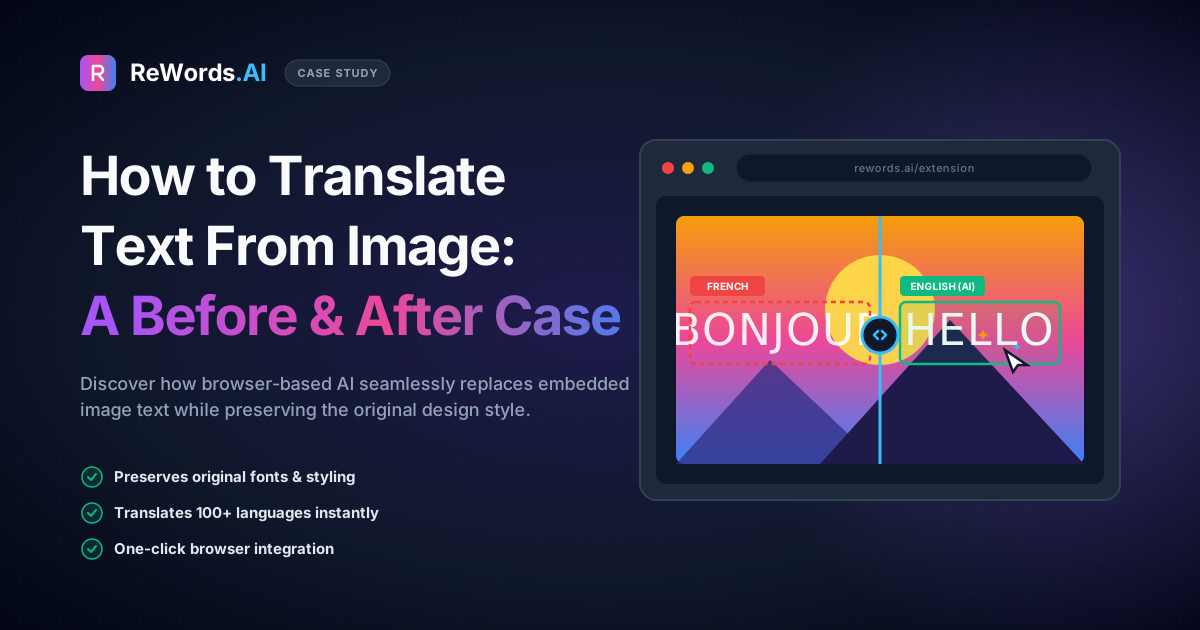
How to Translate Text From Image: A Before and After Case
To translate text from image files while preserving the original design, you can use AI-powered editing platforms that automatically detect the foreign typography and replace it with your translated words in the exact same font, color, and background.
If you work in digital marketing, social media, or graphic design, you have likely encountered this exact frustrating scenario. You receive a gorgeous, high-converting promotional asset from an international colleague or client. The design is flawless, but the text is in a foreign language. Worse, you only have the flattened JPEG or PNG file, not the original editable source files. In the past, localizing this graphic meant hours of tedious manual labor, cloning backgrounds, and hunting for matching fonts.
Today, that workflow has completely changed. ReWords.AI is a browser-based AI tool that lets you edit or remove text in any image by clicking the text and typing a replacement — the AI matches the original font, color, and background automatically.
In this before-and-after case study, we will look at a highly relatable scenario: a marketing manager who needed to translate a Japanese promotional banner into English on a tight deadline, the traditional roadblocks she faced, and the seamless AI solution that saved her campaign.
Key Takeaways
- Translating text on flattened images no longer requires complex graphic design software or advanced background cloning skills.
- AI tools can now automatically detect foreign text regions, allowing you to simply click and type your localized translation.
- When you replace text using AI, the system automatically redraws the new words using the exact same font, size, and color as the original.
- Complex backgrounds behind the original text are seamlessly reconstructed, making the translation look native to the image.
- You can perform batch edits—translating multiple different text elements on a single graphic—efficiently and cost-effectively.
The Before Scenario: Why It Is Hard to Translate Text From Image Files
Translating text directly on a flattened graphic is traditionally difficult because the foreign characters are permanently baked into the image pixels, requiring tedious manual background reconstruction to remove them.
Meet Sarah, a digital marketing manager for a global e-commerce brand. On a Tuesday afternoon, just hours before a major product launch, her team in Tokyo sent over a highly engaging promotional banner that was going viral in the Japanese market. The banner featured a stunning lifestyle photo, a complex gradient background, dynamic shadows, and bold Japanese typography announcing a flash sale.
Sarah’s directive from her boss was simple: "Translate this into English and run it for our US audience tomorrow morning."
The problem? The Tokyo team only sent a flattened .jpg file. The original layered Photoshop (.psd) file was nowhere to be found, and the designer who created it was already asleep in Japan.
Sarah was stuck mid-task with a seemingly impossible graphic design challenge. To manually translate text from image files like this, she would have to rely on traditional, time-consuming methods. She opened up her standard photo editing software and immediately hit three major pain points:
- The Background Erasure Nightmare: Sarah tried using the clone stamp and healing brush tools to carefully paint over the Japanese characters. Because the text sat on top of a complex, multi-colored gradient with a subtle noise texture, her manual cloning left ugly, blurry smudges. The image looked obviously doctored.
- The Font Matching Game: Even if she managed to clean up the background, she now had to figure out what English font matched the aesthetic of the original Japanese typography. She spent 45 minutes scrolling through font libraries, guessing at weights, sizes, and tracking, only to end up with text that looked pasted on and unnatural.
- The Color and Shadow Matching: The original text had a specific hex code color and a subtle drop shadow. Recreating those exact layer styles to make the English translation look like it belonged in the original design was a tedious process of trial and error.
After an hour of manual work, Sarah had a banner that looked messy, unprofessional, and completely unusable for a premium brand launch.
Traditional Workarounds vs. AI Solutions
Older methods involve manually erasing words and guessing fonts in complex software, whereas modern AI solutions automate the entire extraction, translation, and redrawing process instantly.
When faced with a flattened image that needs localization, professionals usually weigh a few different options. If you are using traditional software like Photoshop, the process requires high skill and a significant time investment. If you use basic tools like Canva or Word, you often have to resort to drawing a solid colored box over the original text and typing on top of it—a method that ruins the aesthetic of the design.
Here is a breakdown of how the traditional methods compare to a modern AI-driven approach when you need to translate text from image files.
| Method | Time Required | Skill Level Needed | Background Quality | Font Matching | Cost | | :--- | :--- | :--- | :--- | :--- | :--- | | Photoshop (Manual) | 1 - 2 Hours | Advanced / Expert | Varies (often smudged) | Manual guessing | High (Subscription) | | Canva / Word (Shapes) | 10 Minutes | Beginner | Poor (blocks original art) | Manual guessing | Low | | Hiring a Designer | 1 - 3 Days | None (Outsourced) | Excellent | Excellent | Very High | | ReWords.AI | Under 1 Minute | Beginner | Flawless (AI reconstructed) | Automatic | Low (Free to try) |
As the table shows, the traditional methods force a compromise between speed, quality, and cost. Sarah did not have hours to wrestle with clone stamps, nor did she have days to wait for a freelance designer. She needed a tool that was built specifically for this exact pain point.
The Fix: How to Translate Text From Image Using ReWords.AI
You can successfully translate text from image files by uploading your graphic to an AI editor, clicking the highlighted foreign words, and typing your new translated phrase.
Realizing that manual editing was going to cause her to miss her campaign deadline, Sarah pivoted to a smarter solution. She needed a way to instantly swap the text without losing the beautiful background or the visual impact of the original typography.
This is exactly when you need to edit text in image files using a purpose-built AI platform. Sarah navigated to ReWords.AI, which is entirely browser-based, meaning she did not have to waste time downloading or installing any heavy software.
The workflow to translate her banner took less than a minute and followed these exact steps:
- UPLOAD image: Sarah dragged and dropped the flattened Japanese
.jpgbanner directly into her web browser. - AI scans and detects all text: Within seconds, the ReWords.AI engine scanned the entire graphic. It automatically placed clickable bounding boxes around every single piece of Japanese text—the main headline, the sub-headline, and the call-to-action button.
- CLICK a text region: Sarah clicked on the bounding box containing the main Japanese headline.
- TYPE replacement: A simple text box appeared. Sarah had already run the Japanese phrase through a standard language translator, so she simply typed the English equivalent: "24-Hour Flash Sale!"
- AI redraws it matching the original font, size, color, and background perfectly: The moment she hit enter, the magic happened. The AI seamlessly erased the Japanese characters, perfectly reconstructed the complex gradient background underneath, and rendered her new English text using a perfectly matched font, color, and drop shadow.
Sarah also had a secondary problem: the Japanese banner included a small line of text detailing local Tokyo store hours, which was irrelevant to her US audience. Because ReWords.AI treats an empty text field as a command for seamless text removal, she simply clicked that text region, deleted the text, and hit enter. The background was reconstructed perfectly, removing the irrelevant information without a trace.
Best of all, Sarah took advantage of batch edits. Because she needed to translate the headline, the sub-headline, and the button, she made all of these multiple changes on one image before finalizing. In ReWords.AI, multiple changes on one image equals just 1 credit, making the entire localization process incredibly cost-effective.
The After Scenario: A Perfectly Localized Banner
After using the AI replacement tool, the once-foreign banner is fully localized into English with the original typography, text sizing, and complex background perfectly intact.
The transformation was night and day. Where Sarah had previously spent an hour creating a smudged, unprofessional mess in traditional editing software, she now had a pristine, launch-ready asset in under a minute.
The English text ("24-Hour Flash Sale!") looked exactly as if the original Tokyo designer had created an alternate English version from scratch. The font weight matched the bold, energetic feel of the original Japanese characters. The subtle drop shadow was perfectly replicated. Most importantly, the complex gradient background was completely undisturbed—there were no blurry patches, no clone stamp repeating patterns, and no solid colored boxes hiding the artwork.
Sarah downloaded the localized image and immediately uploaded it to her ad manager. The campaign launched on time the next morning and performed exceptionally well. By using an AI tool designed specifically to translate text from image files, she eliminated the bottleneck of missing source files, bypassed the need for advanced graphic design skills, and saved hours of frustrating manual labor.
What Types of Images Can You Translate?
You can effortlessly translate text from image formats of all kinds, including digital marketing assets, physical document scans, and casual social media posts.
The scenario above highlights a digital marketing use case, but the ability to seamlessly swap text while preserving the background applies to almost any visual medium. Because the AI engine is trained to recognize a vast array of typography and background textures, ReWords.AI works on:
- Photos: Translate signs, menus, or storefronts in travel photography without ruining the real-world background behind the letters.
- Screenshots: Localize software interfaces or app screenshots for international tutorials and help centers.
- Scans: Update or translate scanned physical documents where you do not have a digital text file.
- Posters: Adapt event posters and movie bills for different countries while keeping the original artistic flair.
- Certificates: Translate award certificates or diplomas while maintaining the formal, ornate typography and background seals.
- Invoices: Localize flattened PDF or JPEG invoices for international clients while keeping the structural lines and branding intact.
- Memes: Translate viral international memes for your local audience without leaving obvious white boxes over the original punchline.
- Banners: Localize web banners, hero images, and digital billboards exactly as Sarah did in our case study.
- Thumbnails: Adapt YouTube thumbnails into multiple languages to increase global click-through rates.
- Handwriting: The AI can even detect and replace handwritten notes, mimicking the style and reconstructing the paper texture behind it.
Whether you are a student trying to read a foreign infographic, a business owner localizing an invoice, or a creator translating a thumbnail, the workflow remains exactly the same: upload, click, type, and let the AI redraw it perfectly.
Frequently Asked Questions
how do i translate text from an image?
You can translate text from an image by uploading your picture to an AI text editor like ReWords.AI, clicking on the detected foreign words, and typing in your translated text so the AI can redraw it seamlessly into the original design.
can i translate text on a picture without losing the background?
Yes, you can translate text on a picture without losing the background by using AI tools that automatically reconstruct the pixels behind the original text, ensuring that gradients, textures, and patterns remain perfectly intact when your new text is applied.
is there an app that translates text from pictures and replaces it?
Yes, ReWords.AI is a browser-based application that not only translates the meaning of the text but physically replaces the original words in the image with your new text, matching the original font, size, and color automatically.
how to translate japanese text from an image to english?
To translate Japanese text from an image to English, upload the graphic to an AI image text editor, click the highlighted Japanese characters, and type your English translation; the system will automatically erase the Japanese and render the English in a matching visual style.
do i need to download software to translate image text?
No, you do not need to download software to translate image text, as modern AI solutions like ReWords.AI are entirely browser-based, allowing you to upload, edit, and download your translated images directly from your web browser with no installation required.
Conclusion
Localizing visual content used to be a major bottleneck for marketers, designers, and everyday users. When you need to translate text from image files, you no longer have to accept the poor quality of manual background erasing or the aesthetic ruin of placing solid shapes over original artwork.
As Sarah’s before-and-after case study demonstrates, what used to take hours of frustrating manual labor can now be accomplished in seconds. By utilizing a workflow that simply requires you to upload, click, and type, anyone can achieve professional-grade localization regardless of their graphic design skill level.
Stop wrestling with complex editing software and missing source files. Experience seamless, automatic text replacement and background reconstruction today. Try ReWords.AI free at https://rewords.ai and effortlessly translate your images in seconds.