
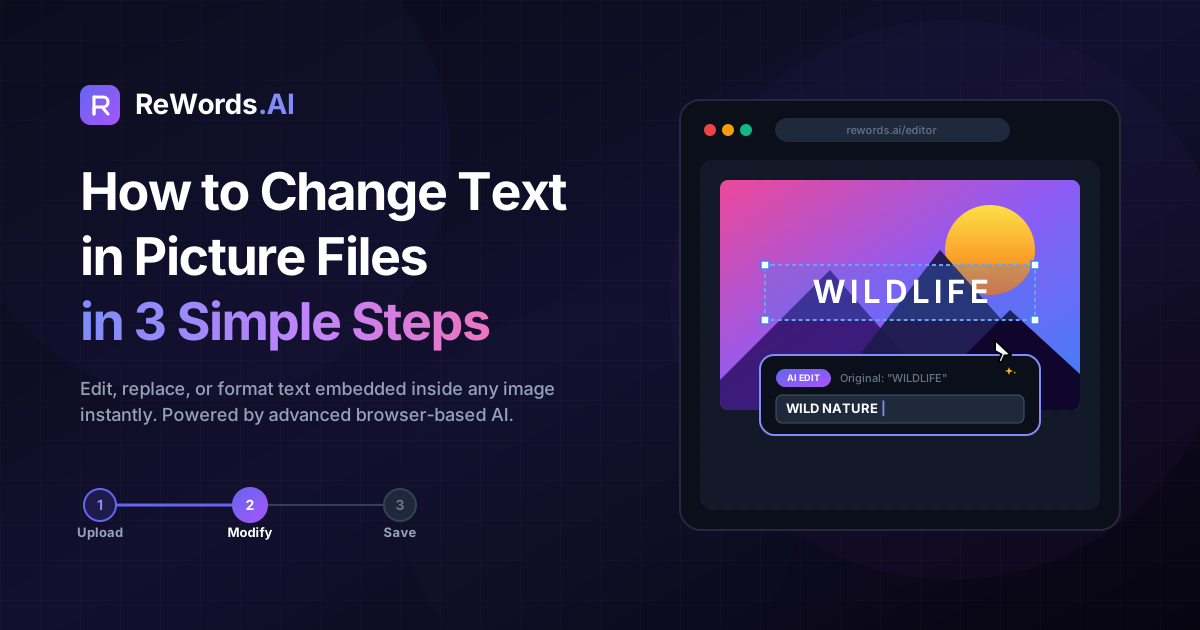
How to Change Text in Picture Files in 3 Simple Steps
To change text in a picture, you can upload your image to an AI-powered editing tool, click on the specific words you want to modify, and type your new text to instantly replace it. If you are mid-task and staring at a glaring typo on a finalized JPEG or PNG, you likely do not have the time to track down the original project file or hire a graphic designer. Fortunately, modern advancements in artificial intelligence have completely eliminated the need for complex desktop software when you need to make rapid text corrections.
ReWords.AI is a browser-based AI tool that lets you edit or remove text in any image by clicking the text and typing a replacement — the AI matches the original font, color, and background automatically. Whether you are dealing with flattened marketing assets, scanned documents, or social media graphics, replacing text is no longer a multi-hour headache.
In the past, figuring out how to change text in picture formats meant painstakingly using the clone stamp tool to erase the old words, guessing which font was originally used, and trying to match the exact lighting and text size. Today, you can accomplish this entirely within your web browser with zero installation required. This comprehensive guide will walk you through the exact steps to edit, replace, or completely remove text from any flat image file in seconds.
Key Takeaways
- You can change text in a picture directly in your web browser without downloading or installing heavy graphic design software.
- AI technology automatically detects typography, allowing you to click and type over existing words while the system matches the original font, size, and color.
- Replacing a word with empty text results in seamless text removal, as the AI perfectly reconstructs the background pixels behind the deleted words.
- You can perform batch edits to make multiple text changes on a single image while only consuming 1 credit.
- The process works flawlessly across a massive variety of formats, including photos, screenshots, scans, posters, certificates, invoices, memes, banners, thumbnails, and even handwriting.
Understanding How to Change Text in Picture Using AI
Using AI to change text in a picture relies on machine learning algorithms that scan flat pixels, identify typography, and seamlessly redraw new characters while preserving the original background. When an image is saved as a JPEG or PNG, the text is no longer editable; it becomes a flat layer of pixels blended into the background. For decades, this meant that once an image was exported, the text was locked in place.
Traditional editing requires a human to manually separate these pixels. If you wanted to fix a date on an event poster, you had to paint over the old date, hoping the background color was a solid, easy-to-match shade. If the background featured a complex gradient, a brick wall, or a detailed photograph, painting over the text would leave an obvious, blurry smudge. After that, you still had to hunt through font libraries to find a typeface that closely resembled the original.
AI completely flips this workflow. When you upload a file to a specialized tool, the AI does not just see flat pixels; it recognizes the characters, the spacing, the curvature of the letters, the exact hex code of the text color, and the texture of the background. Because it understands the context of the entire image, it can generate brand-new text that looks identical to the original design style. Furthermore, it intelligently fills in the gaps left behind by the old text, ensuring that gradients, shadows, and textures remain completely undisturbed. This technology empowers anyone, regardless of their technical skill level, to make professional-grade edits instantly.
Step-by-Step Guide on How to Change Text in Picture
The most effective method for how to change text in picture files is to upload your image to ReWords.AI, wait for the AI to detect the text, click the specific region you want to alter, and type your new phrase. This streamlined workflow is designed for speed, allowing you to fix errors and update information without breaking your stride.
Here is the exact, step-by-step workflow to achieve perfect text replacement:
Step 1: UPLOAD image Navigate to the ReWords.AI website in your web browser. Because the tool is entirely browser-based, there is no software to install or configure. Simply drag and drop your file into the upload area, or click to browse your device's files. The system accepts a wide variety of visual media. You can upload photos, screenshots, scans, posters, certificates, invoices, memes, banners, thumbnails, and even images featuring handwriting.
Step 2: AI scans and detects all text -> CLICK a text region The moment your image finishes uploading, the AI engine immediately goes to work. It scans the entire document and intelligently draws interactive bounding boxes around every piece of readable text it detects. You do not need to manually draw selection lassos or use magic wand tools. Simply look at the generated boxes and CLICK directly on the text region that you want to change.
Step 3: TYPE replacement After clicking the text region, a simple input field will appear. TYPE your replacement text directly into this box. As soon as you confirm the change, the AI takes over. It completely redraws the new text, matching the original font, size, color, and background perfectly. The new words will sit on the image exactly as if they were typed by the original designer. You can then download your newly updated image and immediately put it to use.
Removing Text Seamlessly (The Empty Text Method)
To completely erase words from an image without leaving a trace, you simply select the target text region and replace it with empty text, prompting the AI to seamlessly reconstruct the background behind it. Sometimes, you do not want to replace text at all; you just want it gone.
In traditional software, removing text from a busy background is often more difficult than replacing it. If a screenshot has text overlaid on a complex user interface, or a photograph features a distracting sign in the background, manually cloning the surrounding pixels to cover the text takes immense patience and skill. If done poorly, the edited area looks like a repetitive, pixelated blur that immediately signals to the viewer that the image has been tampered with.
With the ReWords workflow, text removal is brilliantly simple. You follow the exact same steps as you would for replacing text. You upload the image, let the AI scan it, and click the text region you want to eliminate. However, instead of typing new words into the input field, you simply leave it blank. By replacing the selection with empty text, you are instructing the AI to perform a seamless text removal. The AI analyzes the surrounding pixels—whether they are part of a complex photographic landscape, a textured certificate paper, or a colorful meme background—and reconstructs the missing area perfectly. The result is a pristine, text-free image with zero evidence that words were ever there.
Comparing Methods: Traditional Software vs. AI Editors
While traditional software requires manual cloning and font matching to change text in a picture, AI editors automate the entire process to deliver perfect results in a fraction of the time. If you need to edit text in image formats regularly, comparing your options is crucial for workflow efficiency.
Let's look at how you would perform this task in traditional software like Photoshop. First, you would need to open the heavy application and import your image. You would select the Clone Stamp or Content-Aware Fill tool to carefully brush over the existing text, hoping the background blends correctly. Next, you would select the Type tool, type your new text, and spend several minutes scrolling through your font library to find a match. Finally, you would have to manually adjust the font size, tracking, leading, and color to make it look natural.
Basic online templates like Canva offer a slightly different, but equally frustrating, experience for flat images. If you upload a flat JPEG to Canva, you cannot edit the text inside it. Your only option is to draw a solid shape (like a white rectangle) over the old text to hide it, and then type new text over the shape. This completely destroys the original background and looks highly unprofessional on anything other than a plain white document.
Here is a breakdown of how these methods compare:
| Feature/Method | Traditional Software (e.g., Photoshop) | Basic Online Editors (e.g., Canva) | ReWords.AI Workflow | | :--- | :--- | :--- | :--- | | Time Required | 10-15 minutes per edit | 5-10 minutes (requires masking) | Under 1 minute | | Skill Level | High (Layering, Clone Stamp) | Medium (Matching fonts manually) | Low (Point and click) | | Font Matching | Manual search and installation | Manual selection from library | Automatic AI matching | | Background Quality | Depends on user skill | Often leaves solid color patches | Perfect seamless reconstruction | | Installation | Heavy desktop application | Browser-based | Browser-based, no installation |
Best Practices for Batch Edits and Different Image Types
When updating complex documents, you can utilize batch edits to make multiple text changes on one image for a single credit across photos, invoices, and certificates. Efficiency is paramount when you are dealing with business documents or complex graphics that require more than just a single typo correction.
One of the most powerful features of the ReWords system is how it handles multiple revisions. If you upload a scanned invoice and need to update the client's name, the date, the line-item prices, and the total amount, you do not need to process the image four separate times. The AI scans the entire document at once, allowing you to click and type replacements for every single error on the page. Because batch edits allow multiple changes on one image for exactly 1 credit, you save massive amounts of time and resources.
This flexibility extends to the vast array of supported image types. The AI is trained to understand the unique context of different visual formats:
- Invoices and Scans: Perfect for updating billing details, changing dates, or correcting addresses on flat document scans without leaving digital artifacts.
- Certificates and Posters: Easily swap out names on award certificates or update the time and venue on promotional event posters while maintaining the elegant typography.
- Screenshots and Thumbnails: Quickly anonymize sensitive information in software screenshots by replacing names with empty text, or A/B test YouTube thumbnails by swapping out the hook text.
- Memes and Banners: Translate memes into different languages instantly, or update seasonal sale percentages on e-commerce web banners.
- Handwriting: The AI can even detect and replace handwritten notes, mimicking the style and flow of the original penmanship.
By understanding that all these edits can be batched together in a single browser session, you can clear out your graphic design backlog in minutes rather than days.
Frequently Asked Questions
Here are direct, straightforward answers to the most common questions users ask when trying to modify text within flat image files.
how to change text in a picture on iphone?
You can change text in a picture on an iPhone by opening your mobile browser, navigating to ReWords.AI, uploading your image directly from your iOS camera roll, and tapping the highlighted text regions to type your replacement. Because the tool is browser-based, no App Store installation is required.
can i change text in a screenshot?
Yes, you can easily change text in a screenshot by uploading the screenshot file to an AI editor that automatically detects the system fonts used in the interface and redraws your new text perfectly over the original background.
how to edit text in an image without photoshop?
To edit text without Photoshop, use a browser-based AI tool that automatically handles font matching and background reconstruction. You simply upload your image, click the words you want to change, and type your new text without needing any manual graphic design skills.
how to change text in a jpeg image online?
You can change text in a JPEG image online by uploading the flat JPEG file to an AI text replacement tool, waiting a few seconds for the system to detect the text boxes, clicking the detected words, and typing your new phrase directly into your web browser.
will changing text ruin the background?
Changing text will not ruin the background if you use an AI tool designed to perfectly match and reconstruct the original background. Unlike manual erasing which leaves smudges, the AI intelligently repaints the gradients, shadows, and textures behind the text for a seamless finish.
Conclusion
Figuring out how to change text in picture files used to be a frustrating bottleneck that required expensive software and hours of meticulous pixel manipulation. Today, the process has been entirely democratized by artificial intelligence. By simply uploading your file, letting the system scan the typography, and typing your replacement, you can update everything from professional invoices and certificates to casual memes and screenshots.
Whether you need to fix a minor typo, translate a poster, or completely remove sensitive information using the empty text method, the technology now exists to do it flawlessly within your web browser. Stop wasting time hunting for fonts and struggling with clone stamp tools. Try ReWords.AI free today at https://rewords.ai and experience the fastest way to edit your images.